
Documentation
JPGBoost goes well beyond drag and drop. This documentation covers the app's advanced features and how to combine them to fully automate your image processing.
What this documentation covers
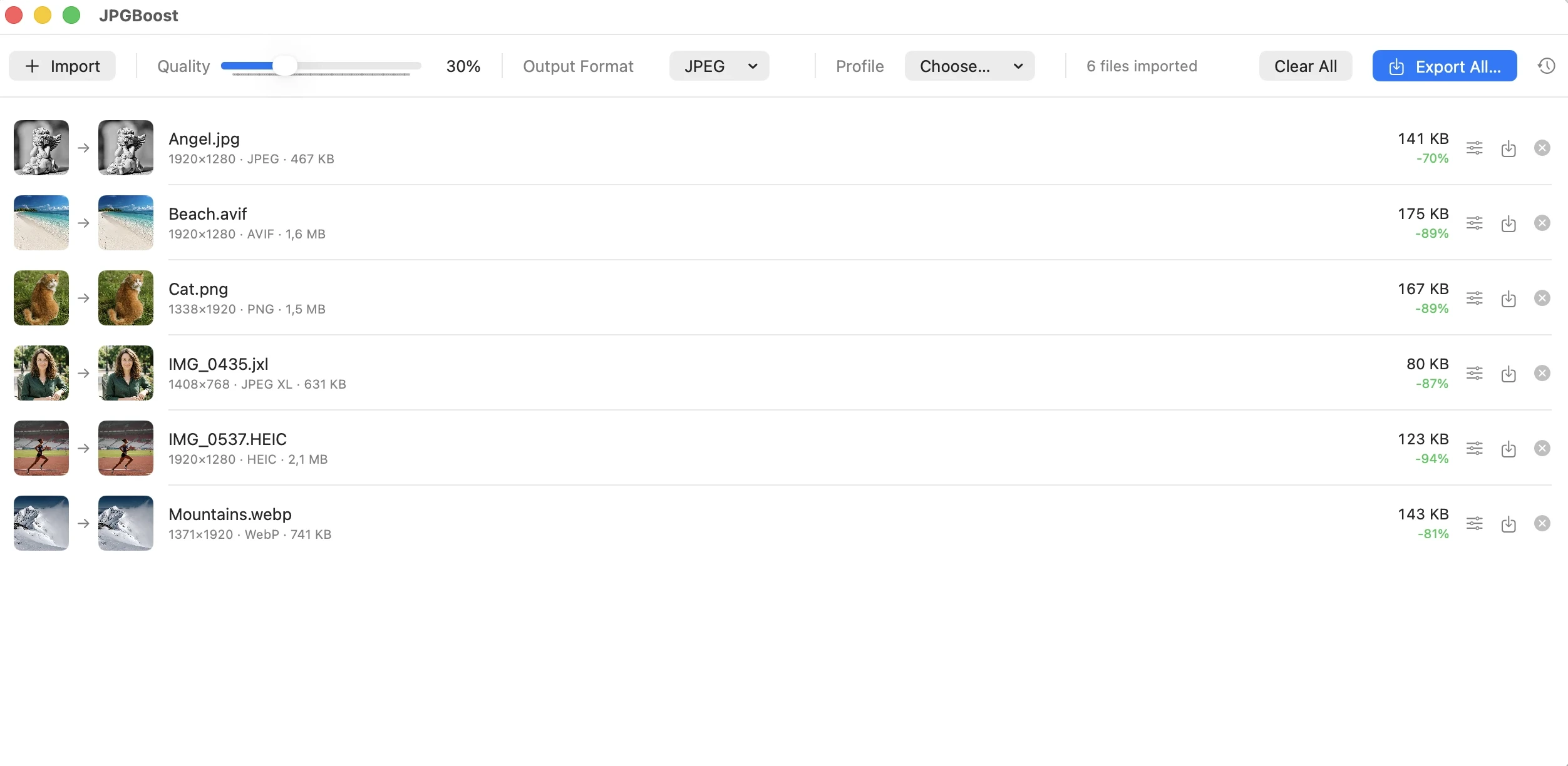
JPGBoost's basics need no explanation. You drop in images, adjust the quality, then export. This documentation is for those who want to go further, in particular by removing the limits of the free version and automating processing so you no longer need to open the app every time.
Each guide stands on its own and can be read independently. If you're new to the advanced features, just follow the sidebar in order.
From within JPGBoost, the Help menu opens this site directly.
Only one feature is Pro-only, jpgboost-cli, the command-line tool, because it runs without the app being open. Everything else, including the local API, watched folders, Shortcuts and AppleScript, and export profiles, is available on JPGBoost Free within the daily quota of 50 images per day and 5 MB per file.
Prerequisites
- macOS Tahoe 26.6 or later, on Apple Silicon or Intel Macs.
- No license is required for the automation that runs with the app open. The local API, watched folders, Shortcuts and AppleScript, and export profiles all work in the free version, within the limits of 5 MB per file, 50 images per day, one watched folder and one export profile. A JPGBoost Pro license removes those limits and unlocks the command line.
- The local API and watched folders require JPGBoost.app to be running. The command line works without it, and Shortcuts and AppleScript relaunch it on their own if needed.
Using the software requires macOS Tahoe 26.6 or any later compatible version, at minimum. macOS Tahoe 26.6 is the recommended reference version, on which the software's features have been tested and validated.
Compatibility with macOS versions other than those expressly mentioned above cannot be guaranteed.
Decoding of supported image formats relies on macOS's native libraries. The AVIF format is supported by macOS starting with macOS 13. Decoding files in the JPEG XL format requires macOS 15 Sequoia or any later compatible version.
On a version of macOS that does not support the JPEG XL format, importing a JPEG XL file cannot succeed. In that case, the software reports the import failure with a clear, detailed message and offers a Retry action from the file list.
Choosing the right entry point
JPGBoost offers five ways to trigger a compression besides the main window. They all share the same encoding engine, so they produce identical results. The table below helps you pick the one that fits your need.
| Entry point | Best for | App needs to be open? | License |
|---|---|---|---|
| Main window | One-off processing, visual image-by-image control | Yes | Free |
| Command line | Scripts, scheduled tasks, continuous integration | No, the app is not involved | Pro |
| Local API | Driving JPGBoost from another program | Yes, the app must be running | Free |
| Shortcuts and AppleScript | macOS automations, Spotlight, Automator | No, macOS relaunches it as needed | Free |
| Watched folders | Continuous processing, with no action from you | Yes, the app must stay open | Free |
The Free license shown in this table doesn't mean unlimited access. These four entry points share the same daily quota as the main window, capped at 50 images a day, 5 MB per file, a single watched folder, and a single export profile.
The Pro license lifts that quota for all five entry points at once and adds command-line access, the only way to run processing without ever opening the app.
The guides
Free and Pro License
Understand the two tiers, activate your key, and manage your license over time.
Step 2Export Profiles
Set a format, quality, and destination once, then reuse them everywhere.
AutomationLocal API
Drive the app from a script via an HTTP/JSON API limited to your machine.
AutomationCommand Line
Batch-compress from the Terminal, a shell script, or a continuous integration pipeline.
AutomationShortcuts and AppleScript
Connect JPGBoost to the Shortcuts app, Spotlight, Automator, and AppleScript.
AutomationWatched Folders
Automatically compress any image dropped into a folder, continuously.